WooCommerce Order Tracking in Chat: Setup Guide
WooCommerce order tracking explained: what each status means, where customers can see it, and how to answer 'where is my order?' safely in chat.

“Where is my order?” is one of the most common questions an online store receives, and your WooCommerce order tracking setup decides how fast a shopper gets the answer. WooCommerce shows every order’s status out of the box. That status is set by the store, though, not by the carrier, and shoppers who misread it end up writing to support.
This guide explains what each WooCommerce order status means and what to tell the customer for each one. It covers the five places where customers can check an order, from My Account to chat. It also walks through answering the question in chat without showing personal data to the wrong person, with reply templates you can copy.
You don’t need to code anything. The only technical part is a short note on keeping API keys safe if a chatbot reads your orders.
Key Takeaways
- WooCommerce order statuses record payment and fulfillment as the store set them. “Completed” means the store marked the order fulfilled, not that the parcel arrived.
- Core WooCommerce traditionally had no tracking numbers. A core Order Fulfillments feature was announced for testing in September 2025; if your version doesn’t include and enable it, an extension such as WooCommerce Shipment Tracking adds tracking.
- Guests can check an order on a page with the
[woocommerce_order_tracking]shortcode, using their order number and billing email. - In chat, check that the order number and the email or phone belong to the same order before showing anything. Then share the status and tracking link, nothing more.
- Late or lost parcels belong with a person. Shoppers want the problem acknowledged and explained (Narvar, 2025).
Why shoppers keep asking “where is my order?”
Delivery information shapes the purchase itself, not only the wait after it. In Narvar’s 2025 State of Post-Purchase report, a survey of 3,461 US online shoppers, 73% said estimated delivery dates influence their purchase decisions. Another 40% said they won’t buy without a delivery date (Narvar, 2025).

Delivery problems are common, too. In the same Narvar survey, 74% had a late delivery in the past year and 86% had at least one delivery issue. A separate 2025 study by Descartes and Sapio Research surveyed 8,000 consumers in Europe and North America. It found that 66% had a delivery problem in the first quarter of 2025, rising to 79% among under-35s and falling to 53% among over-65s.
Both studies come from logistics vendors, so read them as direction rather than exact benchmarks. They point the same way: a shopper who can’t see where an order is will ask someone. In Narvar’s survey, 38% said frequent tracking updates reduce their anxiety. Shoppers can ask at any hour, which is why order questions are often the first job people hand to round-the-clock customer support.
WooCommerce order statuses and what to tell the customer
Every WooCommerce order carries a status that records where payment and fulfillment stand. The definitions below come from WooCommerce’s order statuses documentation. The last column turns each one into something a shopper understands.
| Status | What it means in WooCommerce | What to tell the customer |
|---|---|---|
| Draft | A temporary record the block checkout creates before the order is submitted | No order was placed yet. They need to finish checkout. |
| Pending payment | Order received, no payment yet | The order exists, but payment hasn’t arrived. Explain how to pay. |
| On hold | Waiting for payment confirmation | Payment still needs confirming. The order is prepared after that. |
| Processing | Payment received, stock reduced | It’s paid and being prepared. It has not shipped yet. |
| Completed | Order fulfilled and complete | The store marked it fulfilled. Share tracking if you have it; it may still be on the way. |
| Cancelled | Cancelled by an admin or the customer | Nothing will ship. Explain what happens with any payment under your policy. |
| Refunded | Fully refunded by an admin or shop manager | The store issued the refund. Their bank or payment provider controls when it shows up. |
| Failed | Payment failed or was declined | The payment didn’t go through. They can try again or use another method. |
Why “Completed” does not mean delivered
“Completed” is the status shoppers misread most easily. WooCommerce defines it as fulfilled and complete, and the store sets it. The status itself says nothing about whether the parcel reached the door.
If your store marks orders Completed when they leave the warehouse, a customer can see “Completed” while the box is still in a van. To them, that looks like a lost order. Say in your shipping email what Completed means at your store, and pair the status with a tracking link whenever you have one.
Many stores add a “Shipped” status, through an extension or custom code, so customers can tell a dispatched order from a finished one. WooCommerce’s core Order Fulfillments feature also lets extensions add custom fulfillment statuses (WooCommerce developer blog, 2025).
Five ways to offer WooCommerce order tracking
WooCommerce gives account holders an order list and guests a lookup form. Carrier tracking traditionally needed an extension, though WooCommerce has been adding a core Order Fulfillments feature, announced for testing in September 2025 (WooCommerce developer blog). Each fulfillment records the items shipped, a draft or fulfilled status, the carrier, tracking number and tracking URL. You pick from 70+ providers or enter tracking manually, fulfilling can notify the customer, and partial fulfillments are supported. Check whether your WooCommerce version includes and enables it. Most stores combine several of the options below.
| Option | Who it serves | What the shopper sees | Carrier tracking |
|---|---|---|---|
| My Account > Orders | Customers with an account | Number, date, status, total, actions | Not traditionally; check Order Fulfillments in your version, otherwise add an extension |
| Order tracking page | Guests | Status and details after entering order number and billing email | Not traditionally; check Order Fulfillments in your version, otherwise add an extension |
| Order emails | Every customer | Whatever your email templates contain | A fulfillment notice if Order Fulfillments is enabled, otherwise an extension |
| Shipment Tracking extension | Every customer | Tracking details in emails, the tracking page and My Account | Yes, entered by the merchant |
| Chat | Anyone who asks | Status and tracking link after verification | If the order holds tracking data |
My Account > Orders
The Orders tab on the My Account page lists each order’s number, date, status, total and available actions. “View” opens the full details. Pending payment and failed orders can show Pay and Cancel buttons, which helps when payment is the real problem.
An order tracking page for guests
Guest shoppers have no account, so they need an order tracking page with a lookup form. Create a page (for example “Track your order”) and add the shortcode [woocommerce_order_tracking]. According to WooCommerce’s shortcodes documentation, it shows a form where the guest enters the order number and billing email to see the status and order details.
Link the page from your footer and your order emails. Tell shoppers to use the email they paid with, since the form checks the billing email.
Order emails
Order emails reach every customer, with or without an account. Traditionally they carried the status change, not carrier tracking; with Order Fulfillments enabled, fulfilling an order can notify the customer, and tracking extensions add their details to emails. They are still the first place most customers will search, so make sure your shipping email includes the tracking page link.
Shipment Tracking extension
The WooCommerce Shipment Tracking extension lets you add tracking details to an order. Those details then appear in order emails, on the tracking page and in My Account. It cost $59 per year when we checked on October 22, 2026. If you are comparing add-ons, our list of WooCommerce plugins that help conversion covers other options.
Order tracking in chat
Chat answers the question where the shopper is already asking it, on any page and without a login. It is also the option that needs the most care, because a chat window will show order data to whoever types the right details.
How to answer “where is my order?” in chat, step by step
Safe order tracking in chat follows one rule: verify first, then show. The six steps below apply whether a person or a chatbot answers.
Before you begin, have these ready:
- Access to the WooCommerce Orders screen (for human agents) or a server-side connection to order data (for a chatbot)
- Tracking numbers stored on orders, through an extension or your shipping workflow
- The reply templates in the next section
- A handoff rule: who takes late, lost or damaged parcels, and during which hours

Step 1: Ask for the order number and one contact detail
By the end of this step, you have two details to check against each other. Ask for the order number plus the email or phone number used at checkout:
“Happy to check. What’s your order number, and the email or phone number you used at checkout?”
If the shopper doesn’t have the number, point them to the confirmation email or My Account. Don’t search by email alone in chat, because that would list orders to anyone who knows an address.
Step 2: Verify that both details match the same order
Show nothing until the order number and the contact detail belong to the same order. Compare the email with the billing email, ignoring capital letters. Compare phone numbers without spaces or country prefixes.
If they don’t match, give one neutral reply that doesn’t reveal which detail was wrong: “I couldn’t find an order with those details. Please check your confirmation email.” If a few tries still don’t work, don’t leave them guessing forever: hand them over to someone on your team.
Step 3: Share the status in plain words, plus the tracking link
Translate the status using the table above. If the order has a tracking number, give the carrier, the number and a direct tracking link. Mention a delivery estimate only if it comes from the carrier or your published shipping times.
Step 4: Keep personal details out of the reply
Even after verification, share only what answers the question: status, order date, carrier, tracking number and link, plus the estimated delivery and order total. Once both details match, the total and estimate are fine to show. Keep the delivery address, phone number and items out of the reply. Never reveal any order details to an unverified person. If someone wants to change the address, send that request through a separate confirmation, not a chat message.
Step 5: Hand late, lost or damaged parcels to a person
A chat can report a status, but it can’t investigate a parcel or decide on a reship. When something goes wrong, Narvar’s 2025 survey found shoppers want acknowledgement (46%), a clear explanation (46%) and real-time updates (45%). A person can do all three. Hand over when the parcel is past its estimate, the tracking hasn’t moved, or the shopper reports damage.
Step 6: Test it with a real order
Check the setup before customers do. Use one of your own orders and try three cases:
- Correct order number and email: the status and tracking link appear.
- Correct order number, wrong email: you get the neutral “couldn’t find” reply.
- Order number only: you’re asked for the email or phone first.
Reply templates for each order status
These templates work for a human agent or as instructions for a chatbot. Replace the brackets with order data.
| Status | Reply template |
|---|---|
| Pending payment | “Your order #[number] is saved, but we haven’t received payment yet. You can pay from your order page: [link]. Want help with that?” |
| On hold | “Order #[number] is waiting for payment confirmation. We’ll start preparing it as soon as the payment is confirmed.” |
| Processing | “Good news: order #[number] is paid and being prepared. It hasn’t shipped yet. You’ll get an email with tracking when it does.” |
| Completed, with tracking | “Order #[number] left us on [date] with [carrier]. Tracking number: [number]. Follow it here: [link].” |
| Completed, no tracking | “Order #[number] was marked complete on [date]. I don’t have tracking for it here, so I’ll pass this to a colleague who can check.” |
| Cancelled | “Order #[number] was cancelled on [date], so nothing will ship. [Refund note under your policy].” |
| Refunded | “We refunded order #[number] in full on [date]. Your bank or payment provider decides when it appears on your statement.” |
| Failed | “The payment for order #[number] didn’t go through. You can try again from your order page: [link], or use another payment method.” |
| Late or lost | “I’m sorry your parcel is late. I’m passing this to a colleague now so they can check with [carrier] and get back to you.” |
Keep API keys on the server
A chatbot that answers order questions usually reads orders through the REST API. Its orders endpoint returns one order by ID and can list orders filtered by status, customer, search term or date:
GET /wp-json/wc/v3/orders/<id>
Every endpoint requires authentication with a consumer key and secret. Anyone holding those keys can call the API with the same access. Keep them in server-side code only. JavaScript in the chat widget runs in the visitor’s browser, where anyone can read it with developer tools.
The safe pattern is simple. The widget sends the order number and contact detail to a server, the server calls WooCommerce, checks that the details match, and returns only the fields the reply needs.
Example: order tracking in chat with Ovebot
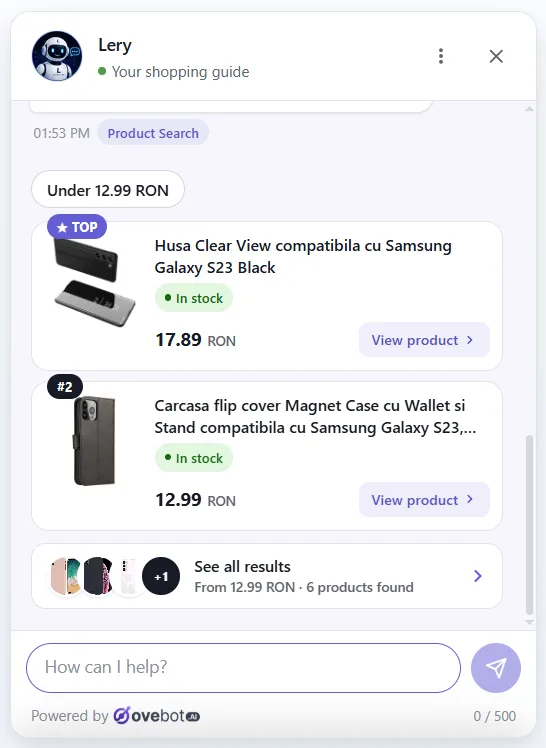
Here is one example of an order lookup in chat, shown on a demo store. Ovebot’s WordPress plugin, listed on WordPress.org, adds the chat widget and connects order lookup to WooCommerce.

The plugin settings include an “Order tracking API” section that you switch on or off. The service calls the plugin’s order-tracking endpoint with its own credentials, so no WooCommerce keys sit in the widget’s browser code.

In the chat, the visitor gives the order number plus the email or phone from checkout. Ovebot looks the order up live and shows the status, carrier, tracking number and link, estimated delivery and order total. Nothing is stored; each lookup runs fresh.

The dashboard also has an Orders view, but it is a different feature: attribution, not shipment tracking. It lists orders placed after a chat session, with totals, so you can see how often a chat comes before a purchase. It does not show where a parcel is. Setup details are on the WordPress and WooCommerce integration page.

Common mistakes to avoid
Each of these slips can break order answers in chat, and each has a simple fix.
Treating “Completed” as delivered. The status records what the store did, not what the carrier did. Pair it with tracking, or explain what it means at your store.
Showing an order from the number alone. Order numbers are short and often follow each other, so they’re easy to guess. Always ask for a second detail.
Putting API keys in widget code. Keys in the browser are public keys. Keep them on a server.
Promising dates you don’t control. Quote the carrier’s estimate or your published shipping times, never a guess.
Letting a bot handle a lost parcel alone. A status reply can’t fix a missing delivery. Route it to a person fast.
Frequently asked questions
Customers with an account open My Account > Orders and click View. Guests use the store’s order tracking page with their order number and billing email. Carrier tracking appears only if the store records it, through core Order Fulfillments or an extension.
The payment arrived and stock was reduced, but the order hasn’t shipped yet, so there is usually no tracking number at this stage.
Processing means paid and waiting to be fulfilled. Completed means the store marked it fulfilled. Neither comes from the carrier, so Completed does not confirm delivery.
Traditionally, no: core WooCommerce stored no tracking numbers. WooCommerce announced a core Order Fulfillments feature for testing in September 2025 that records the carrier, tracking number and tracking URL per fulfillment (WooCommerce developer blog). Check whether your version includes and enables it; otherwise the Shipment Tracking extension or a shipping plugin adds tracking.
Yes. A page with the [woocommerce_order_tracking] shortcode lets guests look up an order with their order number and billing email. A chat that verifies the same details is another option.
Setting up order tracking: what to do first
WooCommerce order tracking works best when statuses are explained in plain words, tracking numbers sit on every shipped order, and chat answers only after the order number and contact detail match. Set up the tracking page, write the templates, and decide who takes the problem parcels. For the wider picture of what a store chat can handle, see the ecommerce chatbot guide.
About this guide: written by the Ovebot team, the developers, ecommerce specialists and support staff who build the product and talk with store owners every day. Facts are checked against the sources listed below. About us · Contact
Sources
- WooCommerce – Order statuses – 2026 – https://woocommerce.com/document/managing-orders/order-statuses/
- WooCommerce – The My Account page – 2026 – https://woocommerce.com/document/the-my-account-page/
- WooCommerce – Page shortcodes – 2026 – https://woocommerce.com/document/woocommerce-shortcodes/page-shortcodes/
- WooCommerce – Shipment Tracking – 2026 (price checked 2026-10-22) – https://woocommerce.com/products/shipment-tracking/
- WooCommerce Developer Blog – Call for Testing: WooCommerce Order Fulfillments – 2025-09-23 – https://developer.woocommerce.com/2025/09/23/call-for-testing-woocommerce-order-fulfillments/
- WooCommerce – REST API documentation: Orders – 2026 – https://woocommerce.github.io/woocommerce-rest-api-docs/#orders
- Narvar – 2025 State of Post-Purchase (3,461 US online shoppers) – 2025 – https://corp.narvar.com/press/new-narvar-state-of-post-purchase-report
- Descartes and Sapio Research – Annual ecommerce study (8,000 consumers in Europe and North America) – 2025 – https://www.descartes.com/resources/news/descartes-annual-ecommerce-study-shows-younger-consumers-driving-online-buying
This article was written with the help of artificial intelligence and reviewed by a human editor.